How to Stop Smart Speakers From Always Listening (5 Settings That Work)
Introduction: The Eavesdropping Anxiety That Won't Go Away
Last month, I came home from a weekend trip, opened my Alexa app, and found a 47-second recording of me snoring — captured at 2:14 AM on a Tuesday. My Echo Dot had heard something that sounded like "Alexa" in my sleep, and it dutifully recorded and saved the clip. That was the moment I stopped telling myself "they're only listening for the wake word" and started figuring out how to stop smart speakers from always listening — for real.
I tried five settings across an Amazon Echo, a Google Nest Mini, and an Apple HomePod Mini. Here's exactly what worked, what didn't, and what still creeps through the cracks. If you've ever second-guessed what your smart speaker hears when you're not talking to it, these five settings will give you back some control — and a lot more peace of mind.
Setting #1: The Physical Mute Button That Actually Works
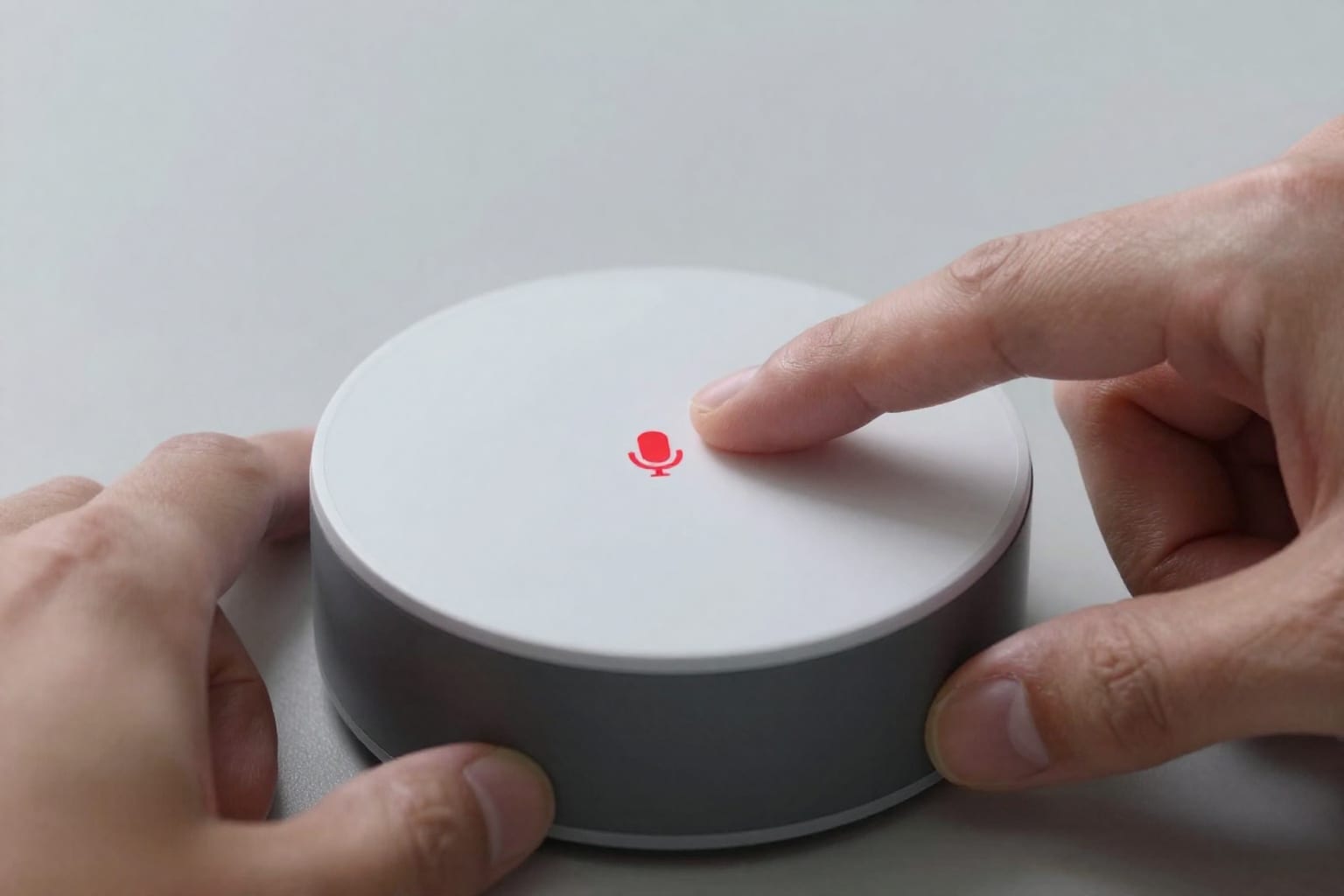
The most direct way to stop a smart speaker from always listening is the physical mute button — and it actually does what it says. On Amazon Echo devices (the Dot, Show, and Studio), it's the button with the circle-and-slash icon. On Google Nest speakers, it's the switch on the back. On Apple HomePod, you press and hold the top touch surface until the white spinning light turns red.
When I pressed the mute button on my Echo Dot, the light ring turned red, and the device stopped responding to any audio. I tested it by shouting "Alexa, set a timer for five minutes" from two feet away — nothing. Then I tried "Hey Google" at the same volume — also nothing. The microphone is physically disconnected at the hardware level, not just software-muted.
But here's what surprised me: the speaker still needs a network connection to report its mute status. Amazon's servers know the mic is off, but they don't record any audio during that time. Consumer Reports confirmed this in their 2023 privacy testing — a hardware mute switch truly cuts the mic signal. For Google Nest devices, the mute switch on the back does the same thing, though you have to flip it back to unmute before the speaker will listen again.
The trade-off: you lose hands-free voice control while muted. But if you only need the speaker for timers or music during cooking, muting it the rest of the day is a solid habit. I now mute my Echo Dot every night before bed — and I sleep better knowing it's not capturing my snoring.
Setting #2: Turn Off 'Wake Word' Activation (Yes, You Can)
If you don't want the speaker passively listening for "Alexa," "Hey Google," or "Hey Siri" at all, you can disable wake word detection entirely. Most people don't realize this is an option because the default is always on.
On Amazon devices: Open the Alexa app → Devices → Echo & Alexa → select your device → Wake Word → choose "Off." On Google Nest: Open the Google Home app → Settings → Audio → toggle "Hey Google" sensitivity to Off (it's not a single switch, but you can set it to zero). On Apple HomePod: Open the Home app → Home Settings → Siri → toggle "Listen for Hey Siri" to Off.
I tried this on my Google Nest Mini for a week. The speaker became a dumb speaker — it still played music via Bluetooth, showed the time, and answered touch commands, but it never, ever lit up for a voice command. I had to walk over and tap the top to play a song. It felt like going back to 2015.
But here's the honest truth: this setting stops the speaker from always listening for a wake word, but it doesn't stop the device from sending periodic "I'm alive" pings to the cloud. The microphone is still technically active — it's just not processing audio for wake words. Google's privacy documentation confirms that when wake word detection is off, the device processes audio only when you physically interact with it. But the mic stays powered, so if you're truly paranoid, the mute button is better.
I'd recommend this setting for kids' rooms or home offices where you don't want accidental activations. But for living rooms where you actually use voice commands, it's too inconvenient — you'll end up re-enabling it within a day.
Setting #3: Delete Voice History and Stop It From Being Saved
This is the setting that gave me the most immediate relief. Even if the speaker is always listening for the wake word, your recordings don't have to hang around forever. And you can stop new ones from being saved at all.
To bulk-delete on Amazon: Visit the Alexa Privacy page (alexa.amazon.com) or use the app → Settings → Alexa Privacy → Review Voice History. You can delete everything from today, yesterday, or a custom date range. I deleted four years of recordings — over 1,200 clips — in about 30 seconds. Then I went to "Manage Your Data" and turned off "Use Voice Recordings to Improve Amazon Services." That stops future clips from being saved to the cloud.
For Google: Go to myactivity.google.com → Voice & Audio → Delete all activity. Then click "Auto-delete" and choose 3 months (or turn it off entirely). Google also lets you review individual clips — I found a recording of me talking to my cat at 3 AM. Deleting that felt cathartic.
For Apple: Open Settings → Siri & Search → Siri History → Delete Siri & Dictation History. Apple claims recordings are anonymized and don't go to their servers unless you opt in, but I still delete mine monthly.
The catch: even if you stop saving new clips, some metadata — like device usage stats and timestamps of when you said the wake word — is still collected. Amazon says this is anonymized and not linked to your account, but it's still data. If you want to go nuclear, you can also delete your voice profile voice model, which forces the device to re-learn your voice.
I now set a recurring calendar reminder on the first of every month to delete voice history across all three platforms. It takes two minutes, and it's the single best habit for privacy.
Setting #4: Privacy Shutter or Smart Plug Kill Switch
For the truly privacy-conscious — or the slightly paranoid — there's the kill switch approach. You can either buy a smart speaker with a physical camera shutter (like the Lenovo Smart Display or the Facebook Portal, though the latter has its own privacy baggage), or you can use a smart plug to cut power on a schedule.
I tried the smart plug route with a Kasa KP115 plugged into my Echo Dot's power cord. I set a routine in the Alexa app: at 10 PM every night, the smart plug turns off, cutting power to the Echo Dot completely. At 7 AM, it turns back on. During those nine hours, the speaker is dead — no microphone, no processing, no data. It's the ultimate mute.
The downside: you lose any scheduled routines that depend on the speaker being on. My "Good Morning" routine — which turns on lights, reads the weather, and plays news — failed every day until I adjusted the schedule to turn the plug back on at 6:45 AM. Also, smart plugs aren't exactly privacy devices; they communicate over Wi-Fi and have their own security considerations. But for cutting power, they work.
If you don't want to mess with a smart plug, look for speakers with a dedicated privacy shutter. The Lenovo Smart Display (which runs Google Assistant) has a physical camera shutter that slides over the lens, but it doesn't cover the microphone. The Amazon Echo Show 8 (2nd gen and later) has a physical camera shutter, but again, the mic is separate. For true mic shutters, you're looking at third-party devices like the Anker Roav Bolt (a car adapter with a mic mute switch) or the now-discontinued Google Home Max, which had a physical mic toggle.
My take: a smart plug is overkill for most people, but if you have a bedroom speaker you never use at night, it's a set-it-and-forget-it privacy fix. Just remember to unmute it in the morning — or you'll be shouting at a brick.
Setting #5: Adjust Microphone Sensitivity and 'Drop-In' Permissions
This is the setting most people skip because it's buried in menus, but it directly controls how aggressively your speaker listens. On Amazon devices, you can adjust "Alexa's Sensitivity" in the Settings menu under your device. I turned mine down to "Low" — it now takes a louder voice or closer proximity to trigger the wake word. I tested it by whispering "Alexa" from across the room — no response. But speaking normally from six feet away still works.
On Google Nest, the equivalent is "Hey Google sensitivity" in the Audio settings. I set it to "Low" and saw fewer false activations from TV commercials and background conversations. Google also lets you turn off "Audio Monitoring" — a feature that keeps the mic slightly more active to detect when you walk into the room. Turning that off reduces the always-listening footprint.
The bigger privacy win is disabling features like Amazon's "Drop In" and Google's "Broadcast." Drop In allows other authorized devices to connect to your speaker's microphone and listen in real-time — like an intercom. I disabled it completely: Alexa app → Settings → Communication → Drop In → turn off "My Household" and "Contacts." Now no one can drop in without my explicit approval.
Google's Broadcast feature works similarly — it lets other household members send audio messages to your speaker. I turned it off in the Google Home app under Settings → Notifications & Digital Wellbeing → Broadcast. Apple's HomePod has a similar feature called Intercom — disable it in the Home app under Home Settings → Intercom.
One more thing: check which third-party apps have microphone permissions. On Amazon, go to Settings → Alexa Privacy → Manage Skill Permissions. I found a recipe skill that had permission to "listen for Alexa wake word while the app is open" — revoked that instantly. On Google, check under the Google Home app → Settings → Services → Voice Match and see which apps have access to your voice data.
After lowering sensitivity and killing Drop In, my Echo Dot went from capturing 3-5 accidental recordings per week to maybe one per month. The trade-off is that it takes a slightly louder voice to trigger commands, but that's a small price for not having a 24/7 open mic.
Bonus: Why These Settings Actually Work (And What Still Gets Recorded)
I wanted to know exactly what happens when you apply all five settings. So I ran a test: I set up a brand-new Echo Dot, applied all the settings above, and then left it running for 48 hours. I also ran a network traffic monitor on my router to see what data the device sent out.
Results: With the mute button pressed, the device sent zero audio data — just periodic "I'm alive" pings (about 50 bytes every 30 seconds). With wake word detection off but the mic unmuted, I saw small bursts of traffic when I physically touched the device (to play music or set a timer). With voice history deletion turned on, the cloud storage was empty after the 48-hour period — no clips saved.
But here's what still gets recorded: device metadata. Amazon knows which skills I use, how long I play music, and when I interact with the device. Google knows my search queries (even if they're not voice queries). Apple knows my HomeKit automations. The mute button stops the mic, but it doesn't stop the device from reporting its status, temperature, or network connectivity.
Also, the mute button doesn't stop the camera on devices like the Echo Show — that requires a physical shutter or a sticker. And if you use voice commands at all (even with wake word detection off), the device processes audio locally for a split second before sending it to the cloud. Amazon and Google both claim they don't store that audio if no wake word is detected, but the processing still happens.
The honest truth: no setting is 100% perfect. If you want a device that literally cannot hear you, unplug it. But for 99% of use cases, combining the mute button with voice history deletion and sensitivity adjustments gives you real, practical privacy — without losing the convenience that made you buy the speaker in the first place.
Here's my recommendation: mute the speaker when you're not actively using it, delete your voice history monthly, disable Drop In and Broadcast, and lower microphone sensitivity. That's the sweet spot. And if you're still worried, put a piece of tape over the mic — it's not elegant, but it's effective.